
The Cover Letter Generator is a drag-and-drop, multiple-choice, fill-in-the-blank template in Repertoire Content Creator.
To use the Cover Letter Generator, login to Repertoire using the button above, and download this template into your account, and take the following steps:
1. Set System Fields
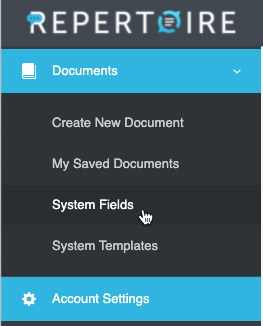
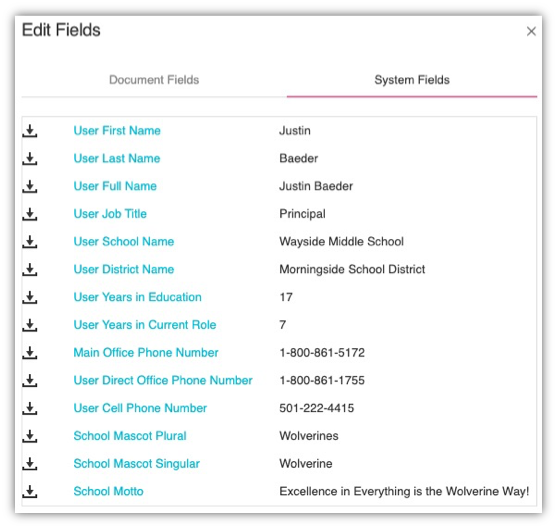
First, visit System Fields in Repertoire and set variables such as your name, school name, mascot, and other details which can be used in a variety of Repertoire Content Creator templates.
2. Set Document Fields
Next, click the Edit Fields button in the Document editor to customize the fields in this copy of the template.
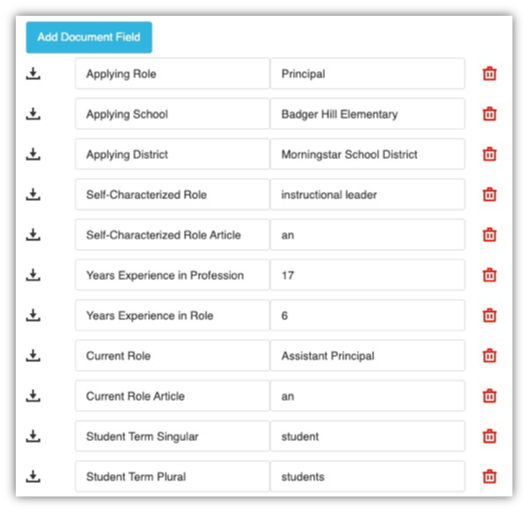
(You can make a copy for each job and edit these fields to quickly update the document for a new application.)
3. Choose Phrase Options
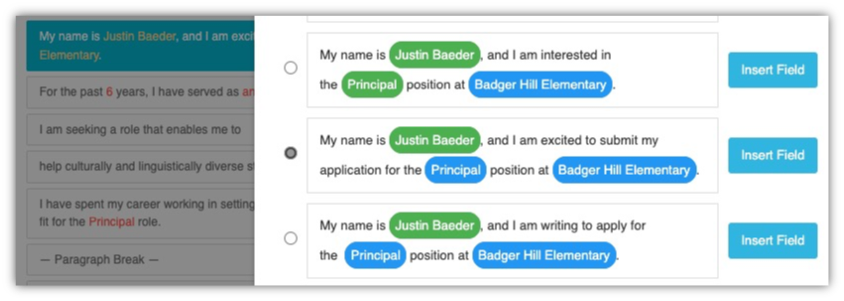
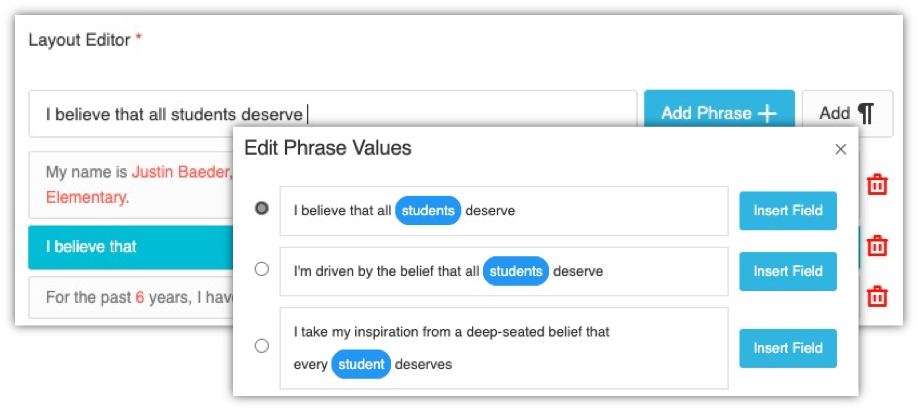
Every phrase in the Cover Letter Generator has multiple options to choose from, and you can write your own, too. Use what fits your voice and writing style.
4. Customize Accomplishments
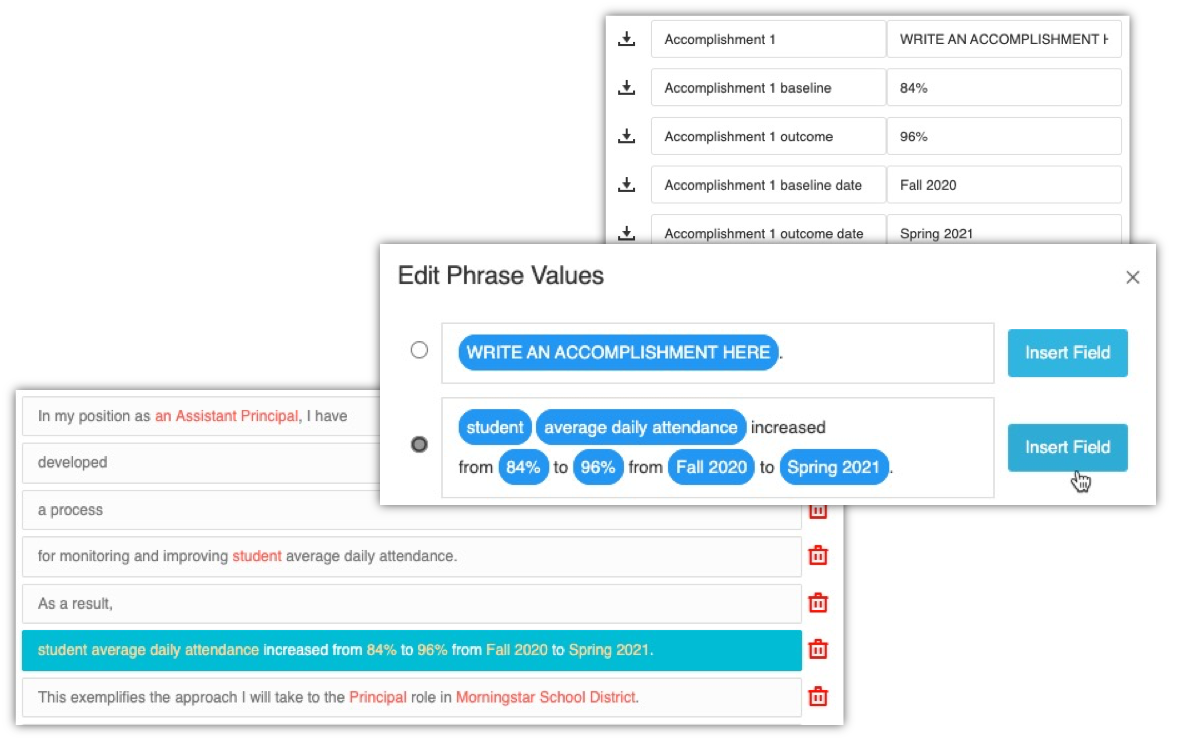
You can write accomplishments in your own format, or use the built-in “before and after” format to show improvements resulting from your efforts.
5. Add Custom Phrases & Variations
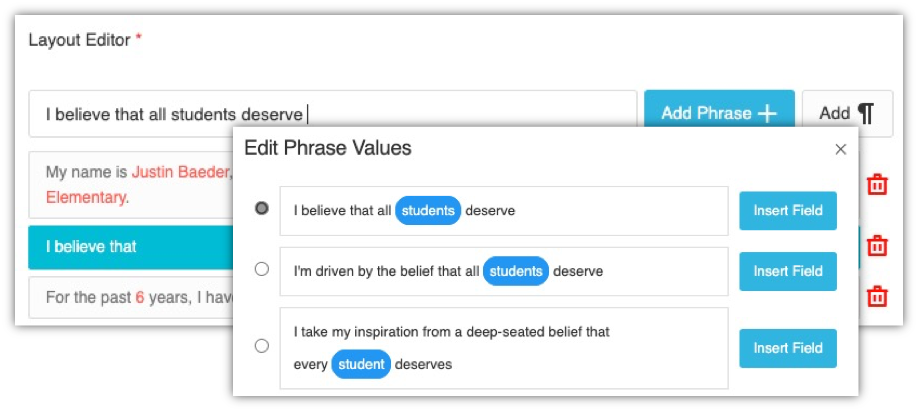
The provided phrases are just the starting point. You can add custom phrases with one or more options by typing in the New Phrase box and hitting Enter, then click the phrase to bring up the multiple-choice Phrase Editor.
6. Drag & Drop Phrases & Paragraph Breaks
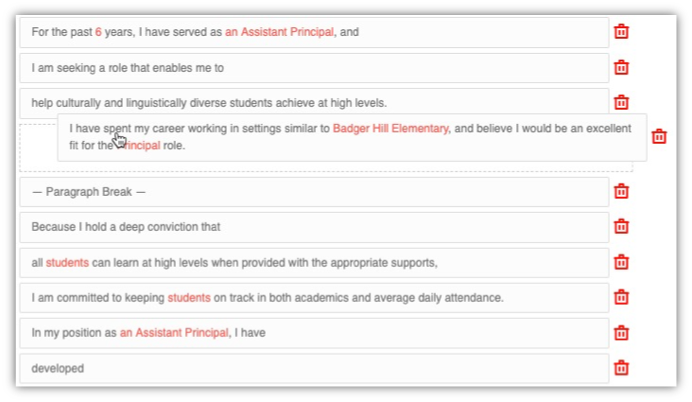
To further customize your cover letter, you can drag and drop phrases to rearrange them. Note that a phrase doesn’t have to be a complete sentence—it can be as short as a single word or letter. To add space between words in separate phrases, add the space at the end of the first phrase.
To add paragraph breaks, use this button:
7. Copy & Paste Into A Template
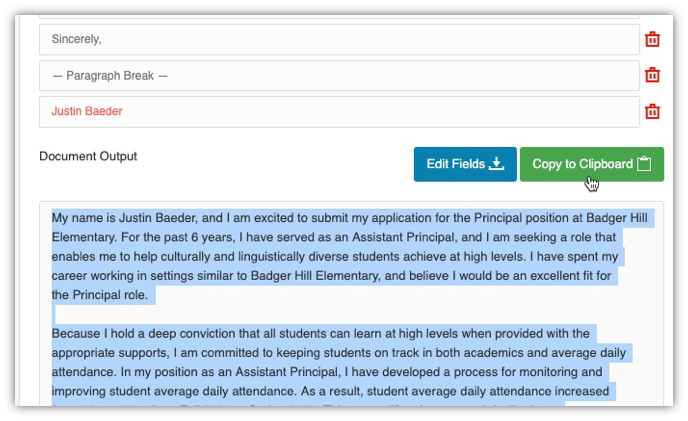
Finally, copy and paste the resulting plain text into the template of your choosing.
You can find our beautiful cover letter templates in the Ascend Job Search Starter Pack.
Step-By-Step Training: How To Craft Your "Perfect Fit" Cover Letter To Get More Interviews